
Arbolus Single Sign-On (SSO) Integration Guide
Supported Features
IdP Initiated Auth Flow: Single Sign-On (SSO) using OpenID Connect (OIDC) initiated via Okta.
SP Initiated Auth Flow: SSO using OIDC initiated via Okta Dashboard or Okta Browser Plugin.
Requirements
Administrative access to an Okta organization.
Configuration Steps
Open a new tab/window in your browser and sign in to your Okta account as an administrator.
Go to "Applications" and click on the "Browse Application Catalog" button.
Search for and click on Arbolus, then click on "Add Integration".
Choose the name by which you want to identify the application, by default it is Arbolus.
You will be redirected to "Assignments" tab, then assign users or groups that require access to Arbolus.
-
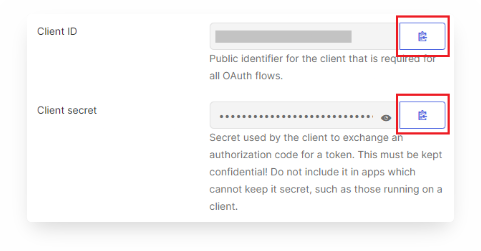
Go to "Sign On" tab and copy Client ID, Client secret.
-
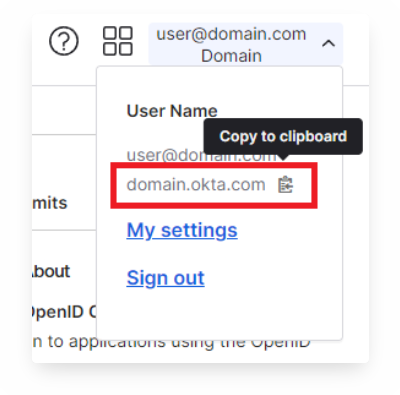
Copy Okta domain found by clicking on your username in the top right corner of the Admin Console.
Email us your Client ID, Client secret and Okta domain at integrations@arbolus.com with the subject "SSO Config".
Our team will notify you once SSO is enabled for your organization.
Usage Instructions
After SSO activation:
-
For SP Initiated Auth: Visit https://community.arbolus.com and click on SSO icon
or go to https://community.arbolus.com/sso directly, type your domain company name and you will be redirected to Okta for authentication.
For IdP Initiated Auth: Users can click on the Arbolus icon on their Okta dashboard or Okta Browser Plugin to launch and log into Arbolus.

Important Notes
Once SSO is enabled, traditional password logins will be disabled.
Note that users must also be created in the application by an Associate or a Client Manager in order to have access.